Edit balance
There are a few scenarios where you might want to manually edit the balance of a sales order. For example, if you gave a customer a partial refund in a canceled item and you want to override the balance to 0.
This now can be done via the Edit Balance button.
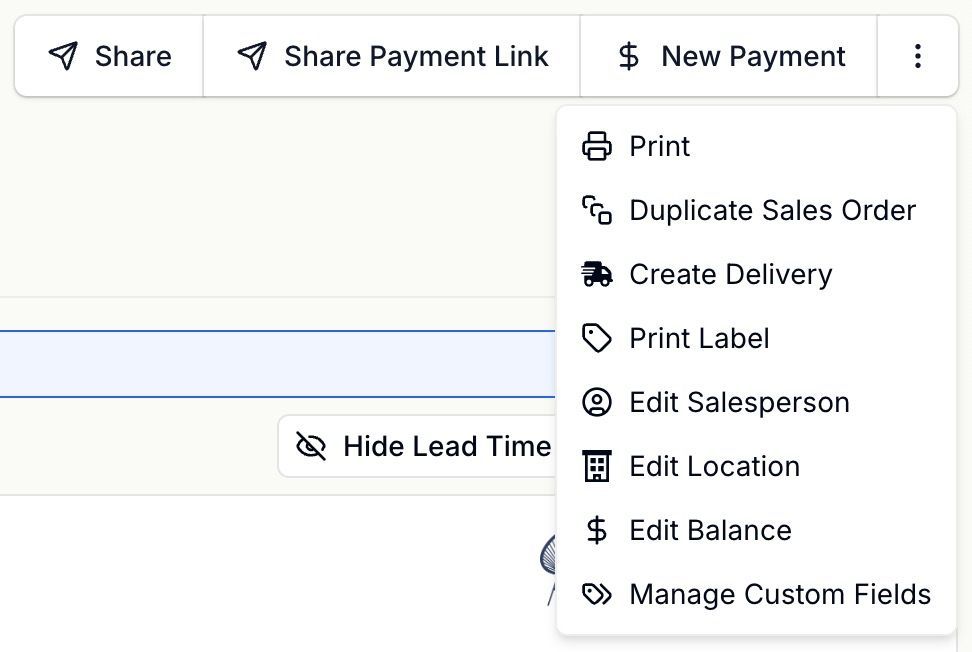
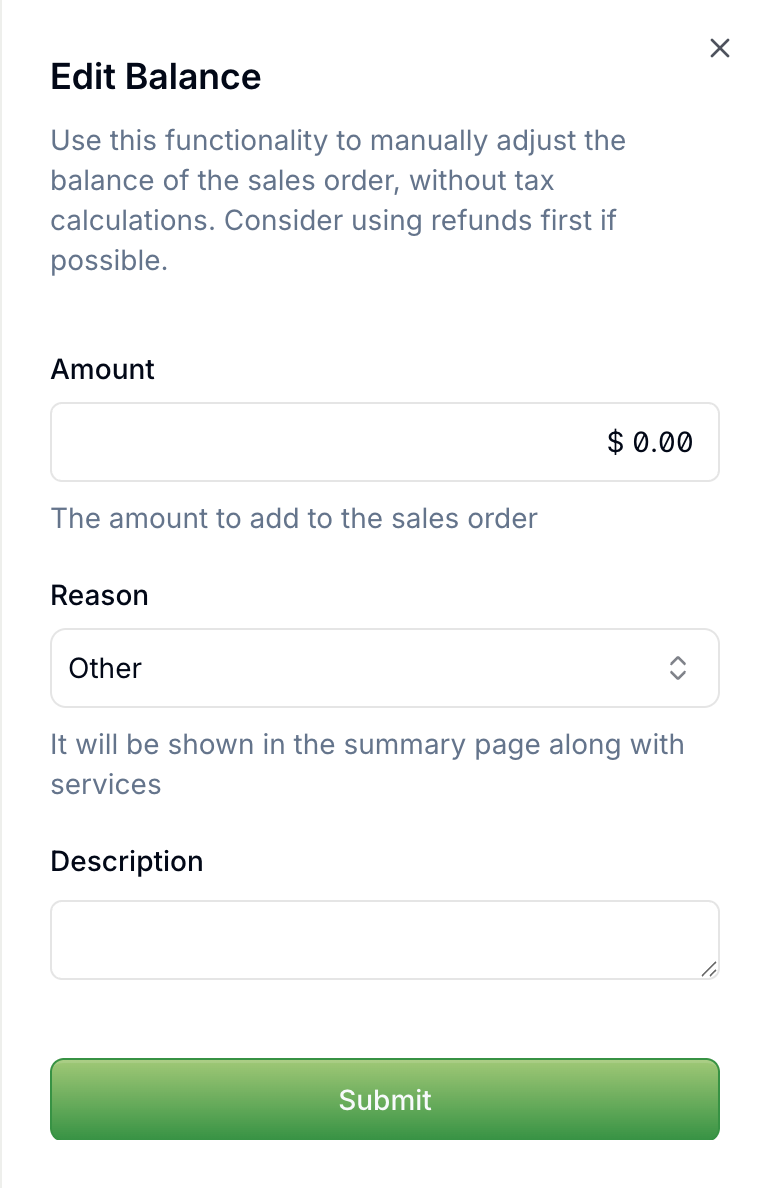
Once you click on the button, you'll be presented with a form to fill out the details of the balance update.
Amount: the amount to add/remove to the sales order.
Reason: the service that was provided to the customer. Example: a customer bought a $1,000 product and decided to return it. The sales representative gave the customer a partial refund of $900, because there is a $100 delivery fee. In this case, the reason would be "Delivery fee". If you have no service provided, just select "Other".
Description: optional description for future reference.
After the form is submitted, the balance will be updated and the sales order totals will be recalculated.
Notes:
No tax calculations are done on the balance update.
No journal entries are created on the balance update.