Return an item
Use the return process when a delivered item needs to be returned to inventory, with or without replacement.
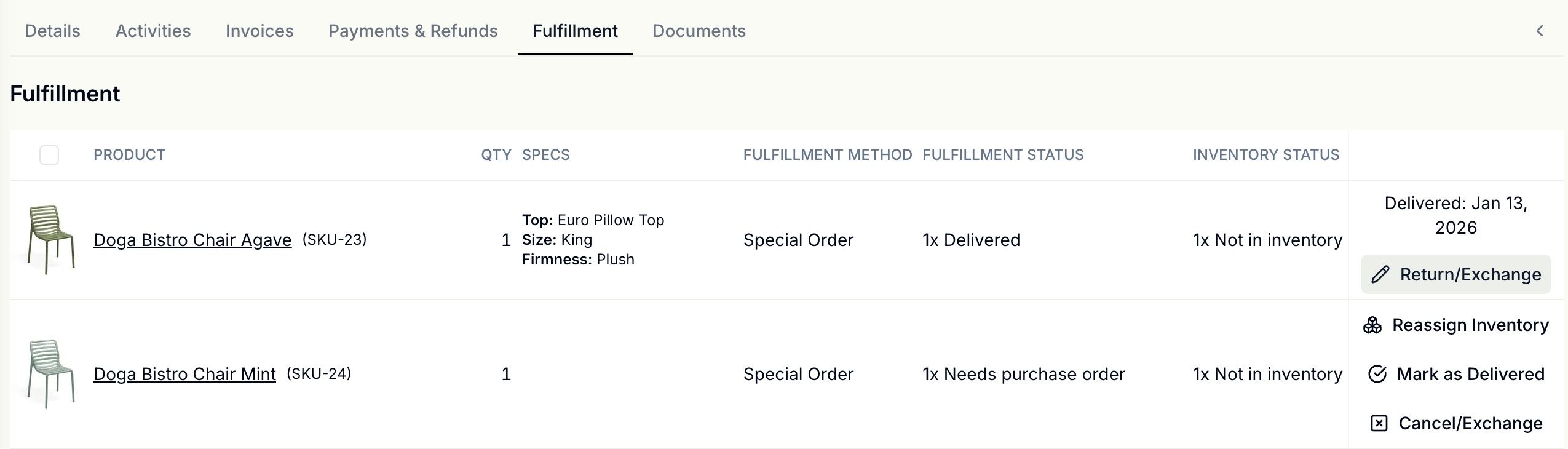
1. On the order's Summary page, go to the Fulfillment section and click Return/Exchange.
2. You will see a dialog:
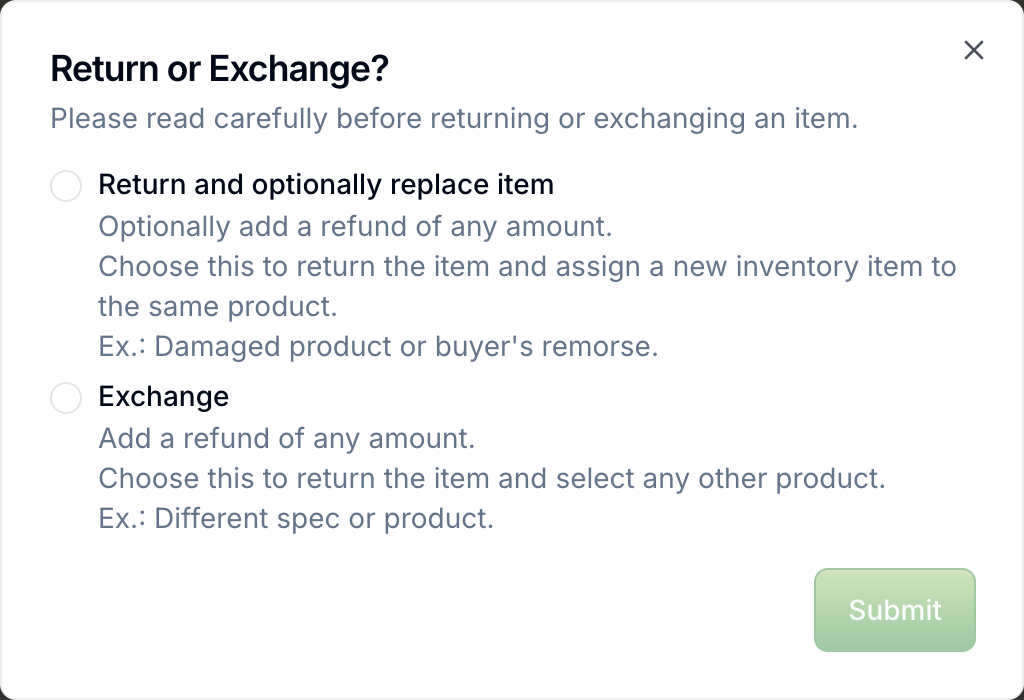
Return and optionally replace item
Use this option for scenarios like:
Customer bought a product and regretted it after a few days
Customer bought a product and noticed a defect
Options:
Remove item
If unchecked: The item quantity stays the same, and you can assign a different inventory item of the same product (replacement).
If checked: The item quantity decreases and no replacement can be assigned.
Create refund
If checked, you will be able to define an amount (initially defined as the total amount the customer paid for the item) and refund method.
Exchange
Use this options for scenarios like:
Customer bought a product and wants to exchange to the same product but with a different spec. You can resell the returned item to another customer and use the refund towards the new product.
Options:
Create refund
This option can't be unchecked since the amount will be used towards a new sales order.
After submitting the form, a new Sales Order is automatically created with an identifier matching the original order plus a letter suffix (e.g., SO-0341 becomes SO-0341A). Customer details (name, address) are pre-filled—you only need to select the new product and complete the sale.
Notes
Impacts on Inventory Item
The returned item will have the inventory status updated to “Returned by Customer”