Introduction
Welcome to Pistachio! This website contains support material to help new users use the software.
Access
You can access Pistachio using your Google or Microsoft account. An admin or Pistachio employee will link your account to your company.
Pistachio is mobile-friendly, so you can use it on your phone, tablet or computer.
Navigation
The application is organized in sections, accessible from the left sidebar. Depending on your company's settings, you may have access to more or fewer sections.
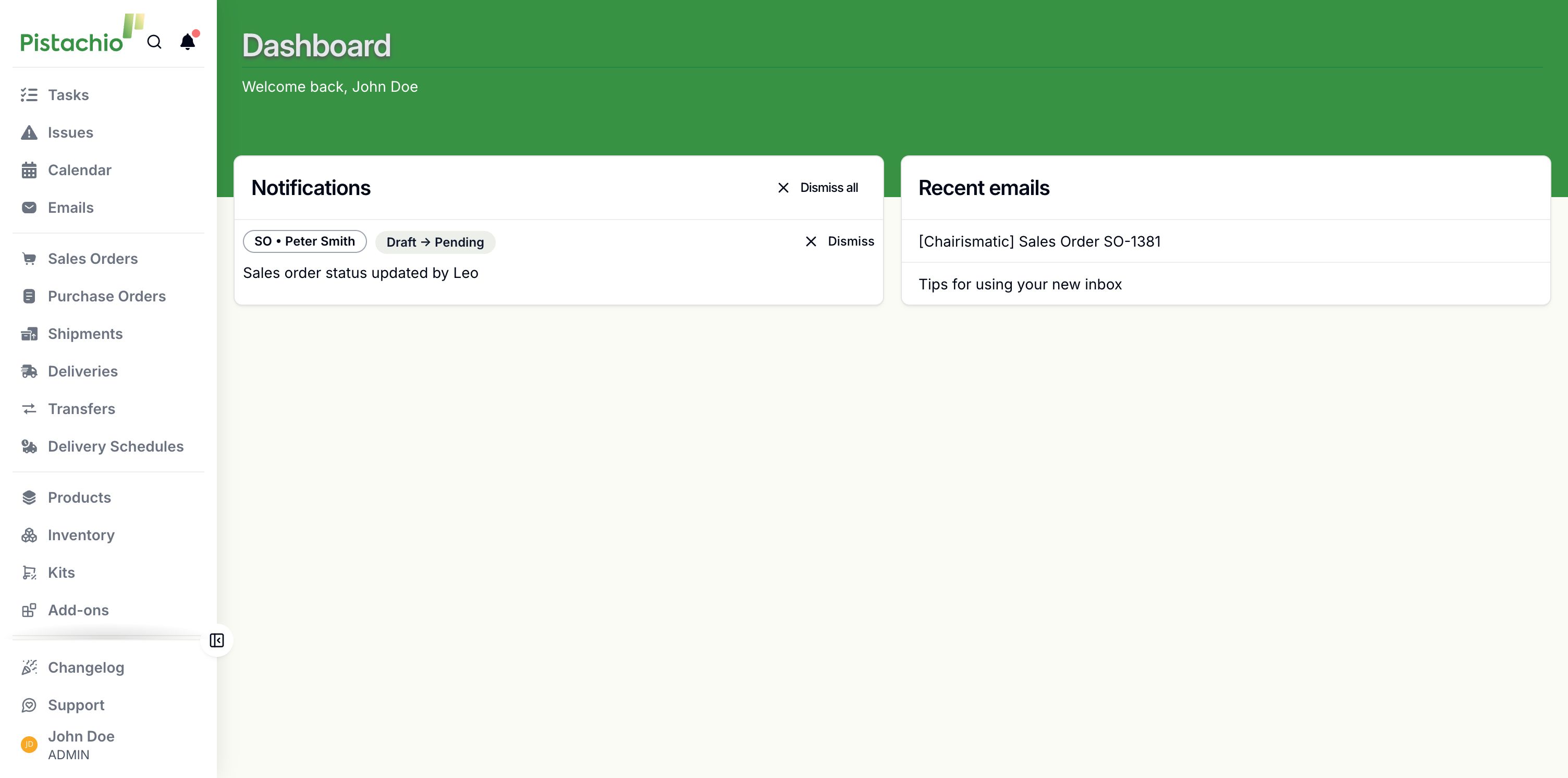
Clicking on Sales Orders, for example, will open the Sales Orders page.
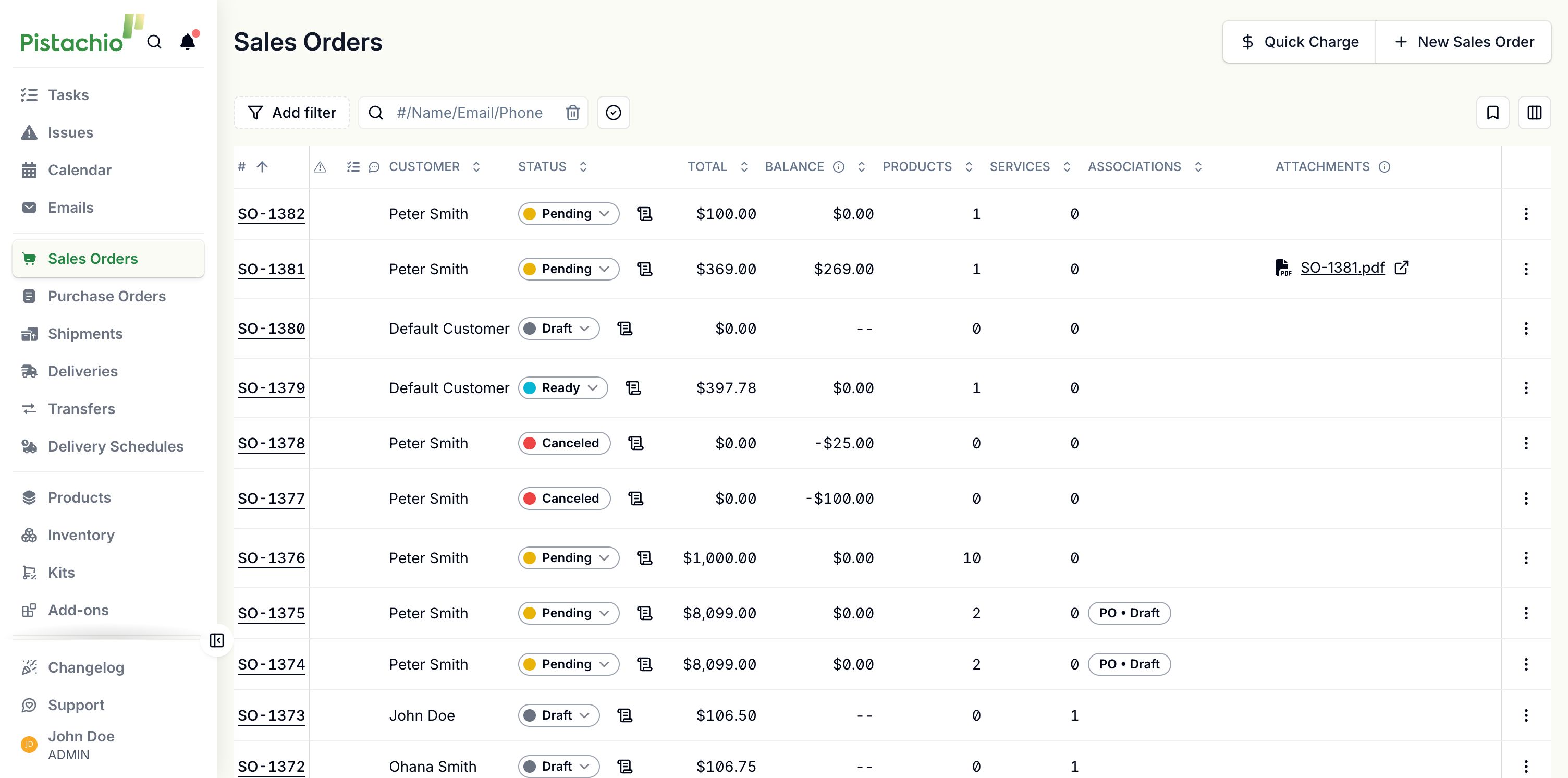
Each page in the application follows a consistent layout:
Page title matching the section name
Action buttons at the top for tasks like creating new orders or deliveries
A table displaying the relevant items (orders, deliveries, invoices, etc.)
You can sort tables by clicking column headers. Use the search bar and filters at the top to narrow down results. Some tables offer custom views, which let you save and share your preferred column and filter configurations with colleagues.
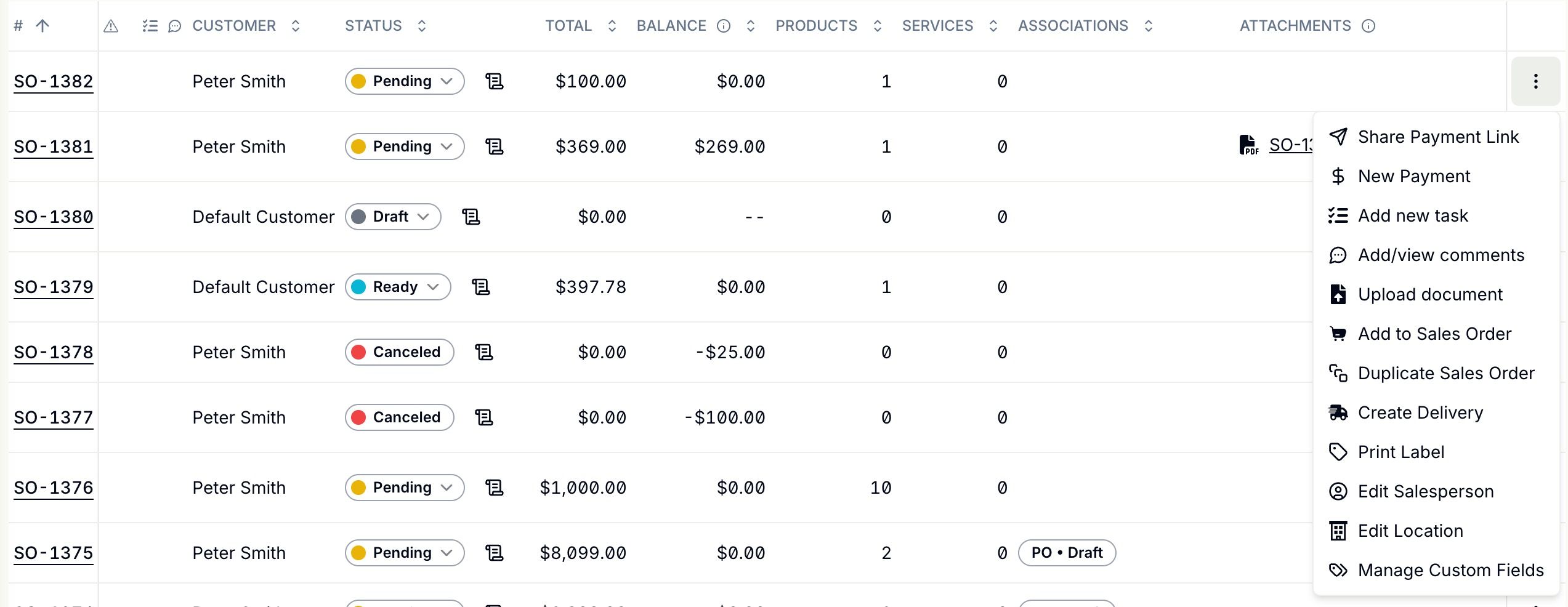
Throughout the application, you'll see a three-dot icon button called the Actions button. Clicking it opens a menu with actions you can perform on the current item. Available actions vary depending on the item and your permissions. Here is one example: