Changelog
This page is outdated. Visit our new Changelog.
April 2025
Step 1 Changes:
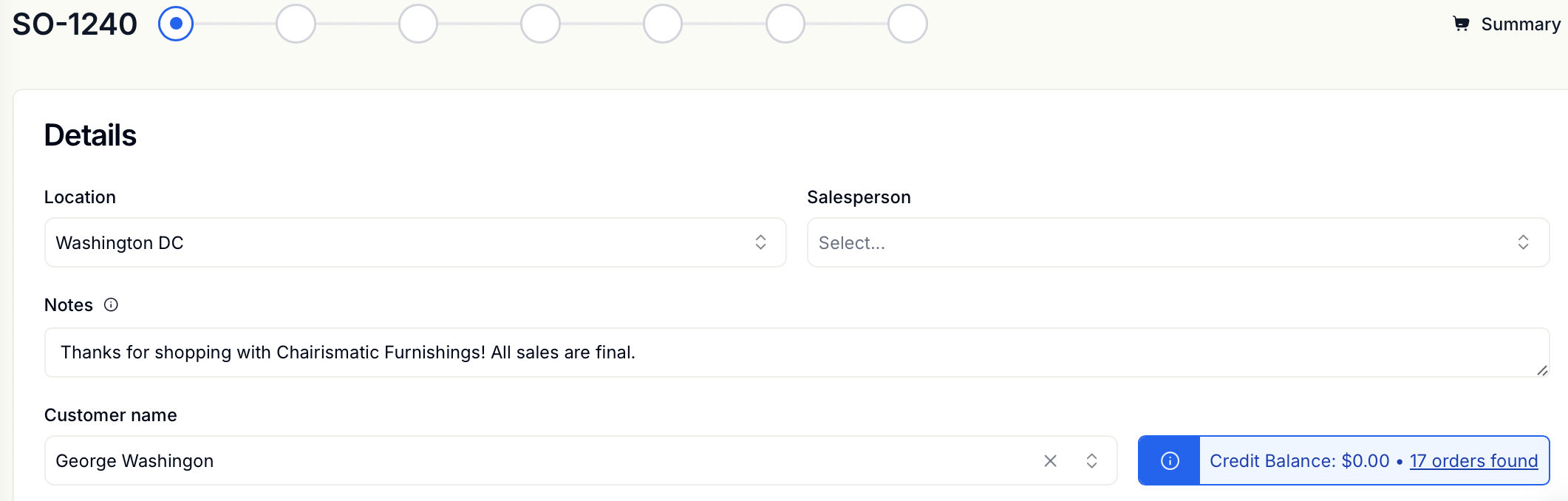
Consolidated customer information - we've expanded the information you'll see horizontally so the location and sales person are now appearing on 1 line (some users will not see any of this information if there is only one location or one salesperson). The notes field is also expanded so it only appears as a single line.
Store Credit Balance - you will now see a customer's store credit directly next to their name, in the blue information bar.
Item Selection - we've simplified the item section from 3 lines to 1. Products and services can now be found together as product. The + sign next to "browse" will be used to create a custom product and the far right + sign will be used to create custom kits.

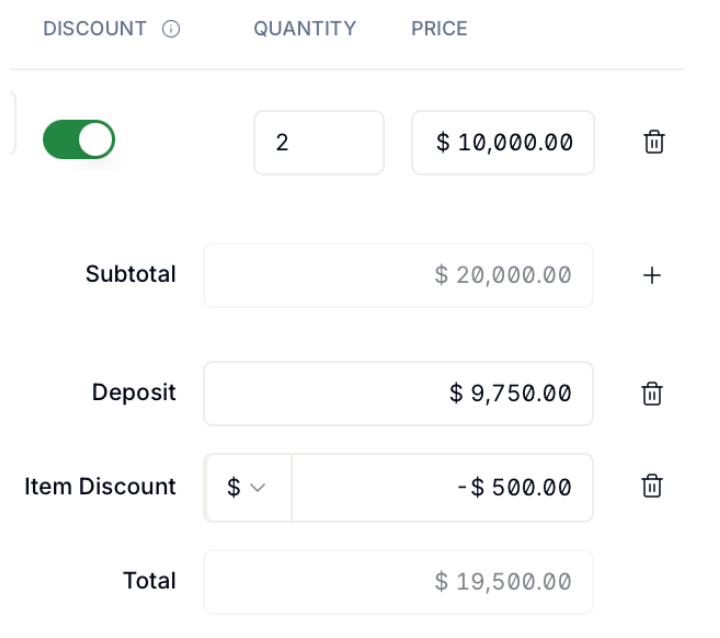
Price Updates - You will now be able to update the quantity and price as well as add a discount to an item. You can modify the deposit amounts as well.
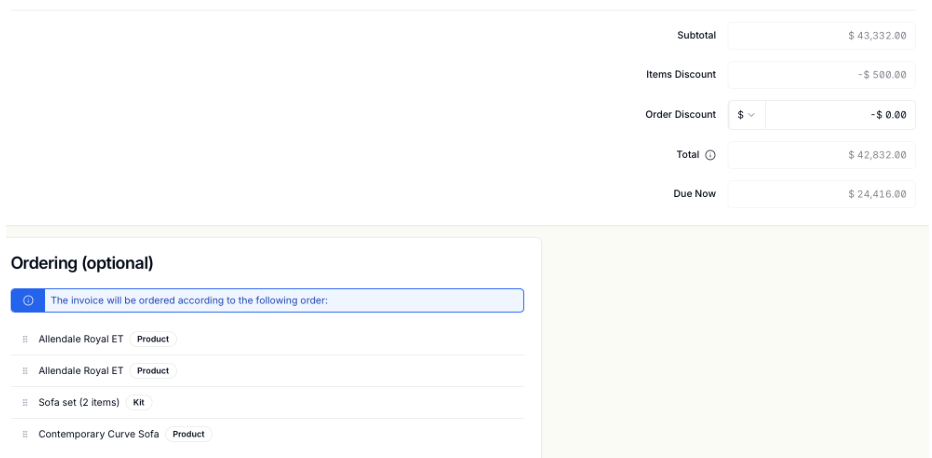
Order Summary Updates - You will see a pre-tax subtotal for the order. You will also have the ability to add an order discount. Below the summary, you'll see the feature that lets you customize the order in which items show up on the order summary and invoice. This now includes kits.
Step 2:
Delivery Service - this has moved to step 1. You can add the service and modify the fee prior to selecting the fulfillment method for each item.
Customer name - at the top of the page you'll see the customer name along with the item count and pre tax invoice totals.
Step 3 Updates:
Customer name - at the top of the page you'll see the customer name along with the item count and pre tax invoice totals.
Tax Calculation - now takes place during the transition from Step 2 to Step 3. Therefore, the Calculate Tax button has been removed on step 3.
Deposits - these are the only active fields on the page. If you have no deposits you can move directly to the Invoice screen.
Steps 3 and 4 Updates:
Invoice format - you'll now see more of the invoice on these page. We've minimized the white space and condensed some of the formatting. We've also made the invoice and payments buttons visible regardless of your screen size.
May 2025
1. Editing a salesperson: You can now edit the sales person by clicking on the 3 dots next to the Sales Order on the sales order table and clicking "edit salesperson" or by clicking "edit" next to the sales person's name on the sales order detail page.
2. Delivered date: once an item is marked as delivered you will see the delivery date listed on the fulfillment tab
3. Tax Exempt Customers: On the customer table you can add a tax exempt status by by clicking on the 3 dots next to the customer, selecting edit and checking off "tax exempt"
4. Receive Items: Once a Purchase Order is in a "sent" status you will now see "Receive Items" on the top right of the page. By selecting that you can receive all or some items on the PO. These items will automatically go to a "ready" status so you can sell them immediately.
5. Create Bill: Once you have updated a Purchase Order to be in a "confirmed" status or after you have received the items you will see a + Bill option on the top right of the page. This will add all items from the Purchase order directly to a bill.
6. Store Credit: A customer's store credit will now appear on the "review and confirm" step next to the apply deposit button. If the customer is using store credit and does not have enough to cover the order click on apply deposit and enter in the store credit value.
7. Search Functionality: Using the browse functionality or typing in the product/service search bar will now produce the same results. You can search by title, specs, etc.
8. Delivery Service: This was moved back to the fulfillment step. You can edit the price or quantity of the service directly on the fulfillment step.
9. Sold At Date: This value is now available to view on the inventory table. If you want to use it you will need to click on the 3 column icon next to the bookmark icon and click "sales order sold at" to view the date. Reminder - you can move the columns on the table around if you are interested in viewing this column without scrolling to the right.
10. Saving a table view: We had a small bug where you could not save a table view with a single filter applied. This has now been fixed.
11. Order Discount Applied to a Delivery Fee: Discounts were automatically being applied to the delivery fee. This has now been defaulted to not apply. If you want to apply the discount you'll need to toggle back to the first step and turn the discount on.
12. Tags are more dynamic: You can include multiple prices now, ex if you want to show an original and sale price. You will have the option of striking out the original price so people can clearly see the original price. The prices can be edited on the "print label" screen. You can also add a received date if you want to prioritize which inventory to sell first. A friendly reminder you can also batch print tags by selecting the checkbox to the left of "name" on the inventory page.
13. Bills Page: We've added more information related to products on the bills page including the serial number and associated purchase order.
14. Bills Table: We've added date filters (created, billed, updated, due) and a calendar picker to narrow down list of bills to a particular time frame, associated Sales Order and Purchase Order information, Company Name
15. Credit Card Option: For those users who have a payment terminal we've removed the "credit card" option on the payment screen. You will either pay with terminal or enter a manual credit card payment if you processed the payment with the virtual terminal.
16. Scheduling Deliveries: You can now schedule deliveries prior to submitting a purchase order. As long as some payment has been taken the "create delivery" option will be available. This should support you in being able to proactively schedule a delivery when you are completing a sale with a customer.
June 2025
Add to a Sales Order
There have been some challenges adding to an order after payment has been taken. As a result we've created this functionality to assist with changes to the order without impacting any of the accounting. You will be able to add to a sales order once the order is in a "pending" status. A few things to note about this:
- You can create the new order by clicking on the 3 dots to the right of the sales order on the sales order table and selecting "Add to Sales Order".
- The new sales order will have the same order number as the original order but a letter will be appended to it, ex: SO-0020 and SO-0020A.
- You can add to the original order as many times as you want and a new sales order with the next letter of the alphabet will be created. ex: O-0020, SO-0020A, SO-0020B, etc.
- The original and new sales orders will all be grouped on the sales order table when you have the orders sorted by order number.
- Once you've created the sales order the customer information will be copied over.
- A new invoice will be created for any items that are part of this specific order addition. These items will not appear on the invoice of the original sales order.
- If you are on the new sales order the original sales order will appear in the "related" information box on the summary screen. If you are on the original sales order, all sales orders that were created with the "add to sales order" process will appear in the "related" information section.
Duplicate Sales Order
This functionality is available in any status. The purpose of this functionality has many uses including, but not limited to: converting items from a large quote into a sales order while keeping the original quote in tact, selling the same set of items to the same or a different customer (ex: a landlord whose is updating their rooms one at a time, a group of a few pieces of furniture or bedding that you may be offering as a package), creating a new sales order that has multiple item changes from the original (it may be easier cancel a full order, duplicate the original order and modify a few items rather than cancelling some items and adding to order), etc.
- You can create the new order by clicking on the 3 dots to the right of the sales order on the sales order table and selecting "Duplicate Sales Order".
- When the side panel opens you can choose to duplicate the customer and/or delivery address
- You can choose to duplicate any or all of the items on the order. All information from the original order will be copied - price, description, etc.
- Whenever you duplicate an order a brand new sales order will be created. There will be no relationship to the original sales order. ex: if you duplicate SO-1245 and the last sales order in your system is SO-1258 this duplicate will be SO-1259
Edit Customer
You can now modify customer information while you are in a sales order. To the right of the customer name you will see a pencil icon. If you click on the pencil the customer information will populate and you will be able to make any changes to their profile. The changes will be applied automatically with the exception of an address addition. If you add a secondary address you will be asked to select which address you'd like to apply to the sales order upon clicking submit. These changes will be available for use on all future orders.
July 2025
1. You can now add a second email address or phone number to any customer profile. This information will populate on the invoice and sales order as well. To access: Navigate to the customers tab, find the customer, click on the 3 dots, select edit and you'll see fields for "show alternate email" and "show alternate phone"
2. You can now edit a location if you created a sales order from a different location. Once a sales order has moved to "pending" or a status after that you can click on the 3 dots to the right of the sales order on the sales order table and select "edit location". Select the correct location and submit. Note: this will not recalculate sales tax. If you need to adjust the sales tax please reach out to support and we can make that update. A future update to recalculate tax is in the works.
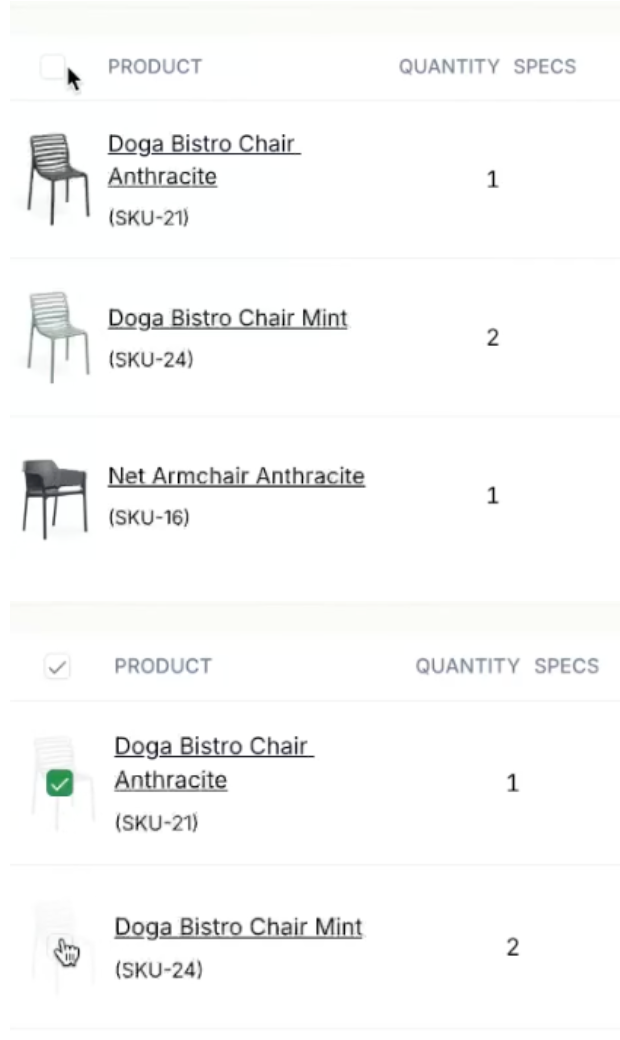
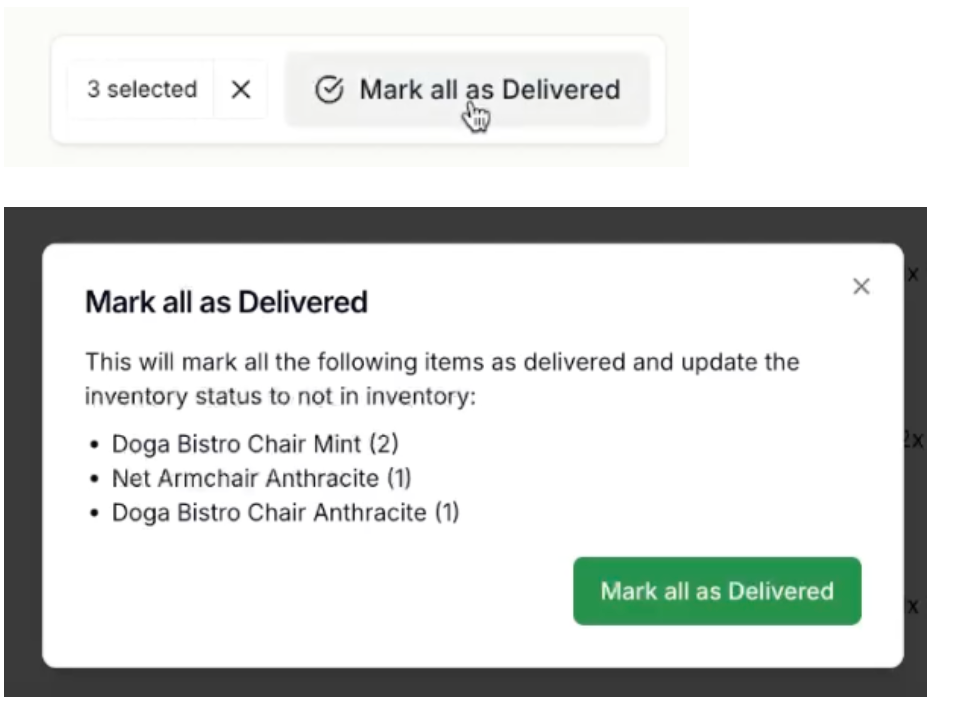
3. Later today you will see an option to mark all, or mark multiple items, as delivered. Once you get to the fulfillment screen you will see a checkbox to the right of "products". If you select that, all items will be checked off (first image). You can also hover over an image and a checkbox will appear (second image). Once at least one checkbox has been activated you will see a button at the bottom of your screen to mark as delivered (image 3). Click on that button and a confirmation screen will populate to display the item names and quantities. Once you click the green "mark as delivered" you'll be all set (image 4).
4. We've updated the logic for auto fulfillment. We will prioritize the inventory that will be selected based on your default location and then we will look at the location listed "warehouse", if applicable, to assign the additional product.
5. You may have noticed that we removed 2 steps from the SO process. After a lot of feedback and some of our more recent changes we determined some steps were just extra clicks for you. We've now removed those additional steps to enable a faster sale to take place.
6. We updated the layout and format of quotes and invoices. We tried to simplify the layout to make it more user friendly for the customer and sales teams to navigate. As a friendly reminder you are able to update any messages you'd like to print on the quotes or invoices. You can make these updates on the main settings page. On this same page you also have the ability to print any custom terms and conditions or other paperwork with these documents. You would upload these documents on the page.
We have an exciting new feature we wanted to share with you.
As of today you'll see a search icon next to the Pistachio logo.
Once you click on this icon you'll have a search bar available.
You can type in the name or any feature/spec associated with an item and appropriate results will populate. These results will display the current price and availability of the item.
Pay the full amount or Split payment
If you proceed with paying the full amount the current payment experience will remain the same
If you proceed with split payment:
1. Type in the amount being paid, select the payment method and click Pay
2. Notice an existing payment line is created at the top of the panel and the amount line has updated to the remaining balance.
3. Add in another payment and click pay. You can repeat this as many times as needed.
4. When all payment has been collected for the day click continue. If you click continue prior to collecting the total amount due you will be able to add payments later on. You will receive a warning message indicating this.
5. You can add the additional payments using the new payment option on the top right of the screen.
Note: If you complete the full payment during step 3 you will automatically be redirected to the receipt page without having to click continue.
Along with the addition of split payments we are removing the "Add deposit" button. The ability to split a payment is the same as a deposit and we think this change will make your sales order process a bit more efficient.