Import Products
Only available for Super Admin users
1. Navigate to products from the left side panel.
Regardless of the option you choose below, do not change any column titles. This will force the import to fail.
Option 1 - export catalog file, modify and import
2. Click on export from the top right of the page

3. A download will be available. If you don't see the CSV make sure you don't have a pop-up blocker on.
4. Make any change to the current data in the file, except for column headers and the ID in the first column.
5. Follow the below steps to import the file.
Option 2 - import file
2. Click on import from the top right of the page

3. Click on the grey area on the top of the screen and select a file to import. Make sure the file is saved as .csv

Note: Use the blue instructions section to ensure you have the proper information set up before you proceed with the file import.

4. After you click import you'll see a sample of the data that will be uploaded. Only some columns will appear on the page. Double check those columns look accurate.
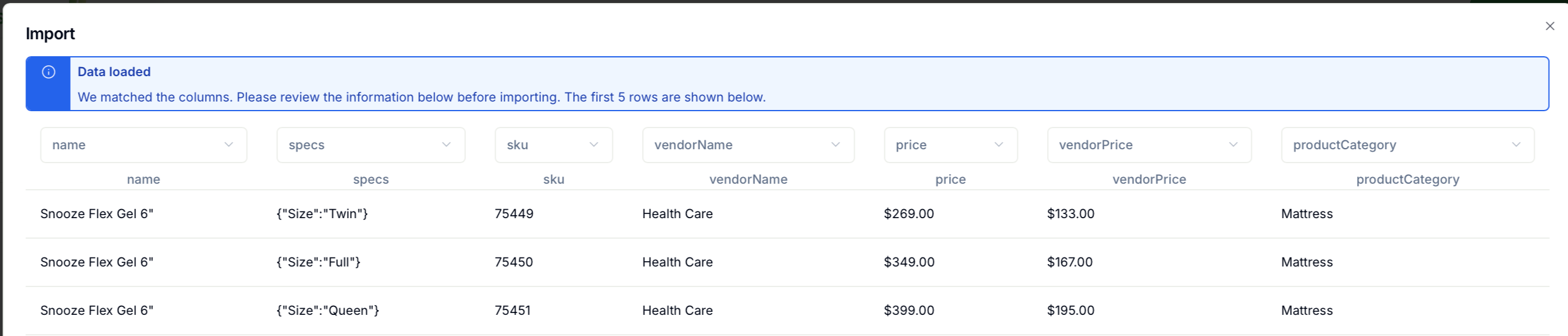
5. If you click preview a complete list of the products will appear. Scroll to the right to make sure all columns look correct.
6. Click Import if everything looks ok.
7. A confirmation message will appear to inform you that the upload is complete.
If applicable, be sure to add the Vendor to quickbooks in the settings.
Note: If a product is not on the CSV but is already in the catalog it will remain in the catalog. If a product is on the CSV but you leave a field/column blank, ex price, the current price in the catalog will remain.
Note: If a vendor is new, they will automatically be created upon import.